
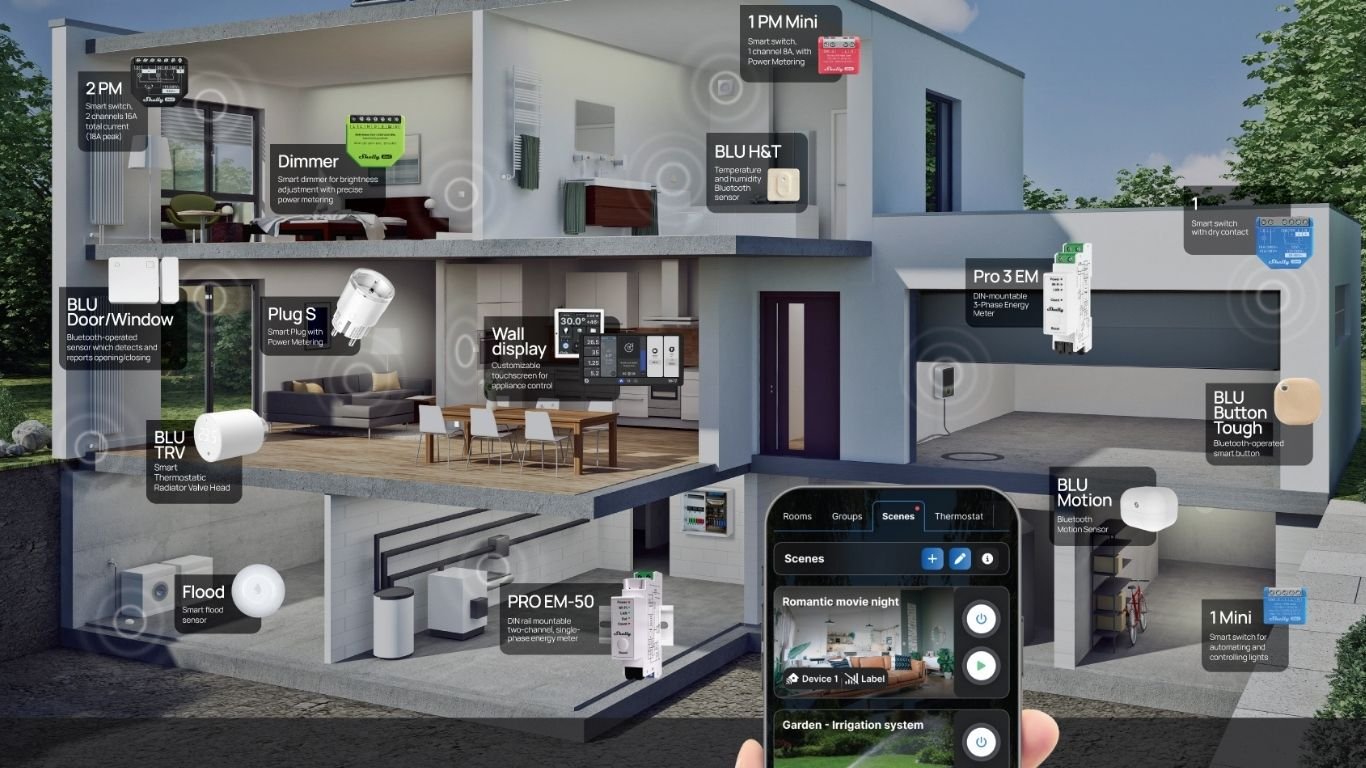
Shelly devices work great with Home Assistant and are easy to set up using the built-in Shelly integration. Once connected, you can control lights, switches, relays, sensors, and automations directly from Home Assistant.
Before You Start
Make sure your Shelly device is powered on and connected to the same Wi-Fi network as your Home Assistant system. It also helps to confirm that the device works in the Shelly app or can be reached through its local IP address.
Step 1: Open Home Assistant
Log in to Home Assistant and go to:
Settings → Devices & Services
Home Assistant may automatically detect your Shelly device. If it appears under discovered integrations, click Configure.
Step 2: Add the Shelly Integration
If the device is not detected automatically, click Add Integration.
Search for Shelly, select it, and follow the setup prompts.
Step 3: Enter the Device IP Address
If needed, enter the local IP address of your Shelly device. You can usually find this in your router settings or in the Shelly app.
Home Assistant will connect to the device and create the available entities.
Step 4: Assign the Device to an Area
Choose the room or area where the Shelly device is installed, such as Living Room, Kitchen, or Garage.
This makes it easier to manage devices and build automations later.
Step 5: Test the Device
Open the device page in Home Assistant and test the available controls. Depending on your Shelly model, you may see switches, sensors, power monitoring, temperature data, or relay controls.
Troubleshooting
If your Shelly device does not appear, check that it is connected to Wi-Fi, on the same network as Home Assistant, and running the latest firmware. You can also restart Home Assistant or assign the Shelly device a static IP address for a more stable connection.
Conclusion
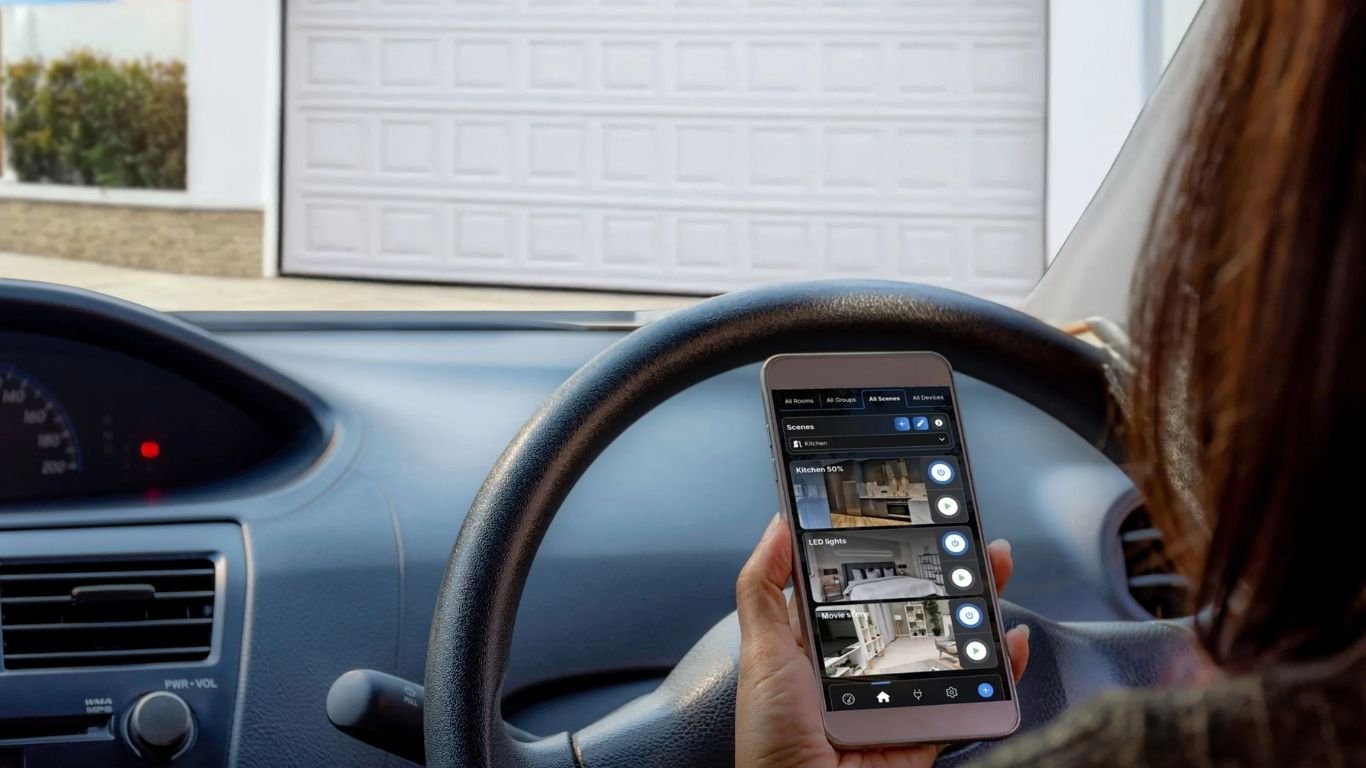
Adding Shelly devices to Home Assistant is simple and gives you better local control over your smart home. Once connected, you can use Shelly devices in dashboards, scenes, and automations without relying only on cloud control.

Comments 0