
Why use Shelly with Home Assistant locally?
If you want Shelly with Home Assistant local control, the good news is that the Shelly integration is designed to communicate with devices on your local network without requiring cloud dependence. That means you can keep lights, switches, sensors, and relays responsive inside your home network while still managing them from Home Assistant.
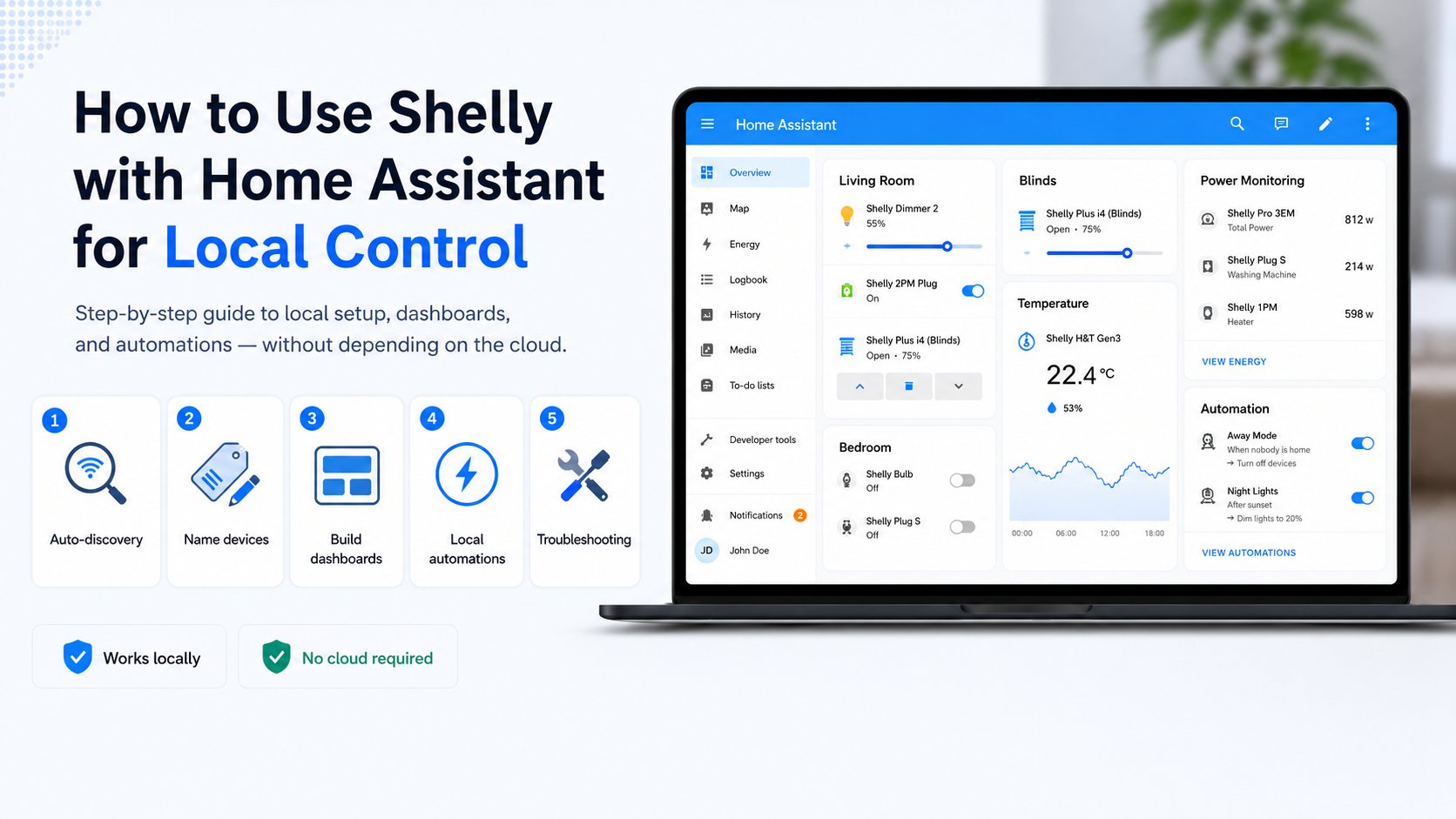
This guide walks through the practical workflow: finding Shelly devices through discovery, accepting the integration, naming entities clearly, building a simple dashboard, and creating a few useful automations. Along the way, you’ll also see what to check if discovery does not appear or a device feels unreliable.
What you need before you start
Before adding Shelly devices, make sure a few basics are in place. Home Assistant should already be running, and your Shelly device should be powered on and connected to the same local network as Home Assistant. If your Wi-Fi is segmented into guest networks or isolated VLANs, discovery may not work as expected.
It also helps to have access to your router settings in case you need to confirm the device’s IP address, check DHCP reservations, or verify that the device is staying on the correct network. Shelly positions its devices as compatible with Home Assistant for smart home control, and the local setup path is the one most beginners will want to use first according to Shelly.
- A working Home Assistant instance with access to the web interface.
- At least one Shelly device connected to your home Wi-Fi.
- Home Assistant and Shelly on the same local network segment where possible.
- Access to router or Wi-Fi settings for troubleshooting if needed.
- A basic idea of what the Shelly device controls: light, switch, sensor, or relay.
How Home Assistant discovers Shelly devices
Home Assistant can automatically discover compatible devices and services on the local network through its discovery mechanism Home Assistant discovery. For Shelly devices, this often means the integration will appear as a suggested setup item once Home Assistant sees the device broadcasting on your LAN.
In practice, discovery is the easiest path for a beginner because you usually do not need to manually type in device details. Once a Shelly device is online, Home Assistant may show a notification or integration suggestion that lets you add it in a few clicks. The exact behaviour can vary by device model and firmware, so do not worry if one Shelly appears differently from another.
Discovery works best when Home Assistant and the Shelly device can see each other on the same local network.
If the device does not appear automatically, wait a minute or two and refresh Home Assistant. Then check whether the Shelly is fully online in your Wi-Fi router and whether your network allows local device discovery. Some networks block the traffic discovery relies on, even though normal internet access still works.
Add and name your Shelly devices clearly
Once Home Assistant discovers the device, accept the integration and move through the setup flow. After that, pay close attention to naming. Consistent entity naming improves the readability and maintainability of a Home Assistant setup according to Home Assistant’s naming guidance. That matters even more once you have several Shelly devices and start building automations.
A practical naming pattern is to describe where the device is and what it controls. For example: Kitchen Counter Light, Hall Motion Sensor, or Garage Relay. Keep the device name and entity names aligned so you can recognize them quickly in dashboards and automations.
- Use human-friendly room-based names rather than model numbers.
- Keep switch, relay, sensor, and input labels consistent across devices.
- Avoid vague labels like "Switch 1" unless the location is obvious.
- If a device exposes multiple entities, rename each one so its purpose is obvious.
Build a simple Shelly dashboard in Home Assistant
Home Assistant dashboards are used to view and control entities with cards and views as described in the dashboard documentation. For a Shelly setup, the goal is not to create something fancy right away. Start with a simple control panel that shows the devices you use most often.
A good beginner dashboard might include one tile or entity card per Shelly relay, plus status cards for sensors such as motion, temperature, or contact state. If a device has a physical input and a relay, show both so you can see what is happening at a glance.
- Open your dashboard and choose to edit it.
- Add a new view for Shelly devices if you want to keep them grouped together.
- Add cards for the most useful entities: switches, relays, sensors, and inputs.
- Arrange the cards by room or by function, such as lighting, heating, or security.
- Save and test each card by toggling or checking live status.
Create local automations with Shelly and Home Assistant
Automations in Home Assistant use triggers, conditions, and actions according to the automation documentation. That structure is ideal for local control because the logic can stay inside Home Assistant and react to device events on your LAN.
Start with a couple of simple automations that solve a real problem. Once those work, you can build more advanced routines. The key is to keep the first versions easy to understand and easy to troubleshoot.
- Motion lighting: When a Shelly motion sensor detects movement after sunset, turn on a Shelly relay for a hallway or entry light. Add a time condition so the light does not trigger during the day.
- Button shortcut: When a Shelly wall button is pressed, toggle a living room light or start a "good night" routine that turns off selected lights.
- Occupancy assist: Use a Shelly sensor and a local Home Assistant condition to turn on a fan, extractor, or lamp only when the room is in use.
If you prefer, you can create these automations in the visual editor first. That keeps the process beginner-friendly and makes it easy to inspect triggers and actions later. If you are comfortable with more technical setup, you can expand from there, but deep YAML or MQTT configuration is not required for the basic local workflow.
Troubleshooting common Shelly and Home Assistant issues
If discovery does not appear, start with the simplest checks: confirm the Shelly is powered, connected to Wi-Fi, and on the same network as Home Assistant. Then refresh Home Assistant and check whether your router is isolating clients or blocking multicast and discovery traffic. If your network uses separate IoT and main networks, make sure they can communicate if discovery depends on it.
If a device appears but feels unstable, inspect Wi-Fi strength and signal quality. Shelly devices can be dependable on a solid local network, but weak coverage, crowded channels, or aggressive router settings can make them seem unreliable. In that case, improving the network is often more effective than changing Home Assistant settings.
- Check the device’s current IP address in your router and confirm it matches the network you expect.
- Make sure the Shelly firmware is reasonably up to date, especially if discovery is inconsistent.
- Avoid putting the device on a guest network or an isolated VLAN unless you have configured routing and discovery support.
- Review entity names if automations look confusing or the wrong entity is being used.
- Restart Home Assistant or the Shelly device if setup seems stuck after a network change.
Best practices for reliable local control
For a stable Shelly setup, keep the network simple and predictable. Good Wi-Fi coverage matters more than extra automation complexity. If you can, give important devices stable network behaviour through DHCP reservations in your router so their addresses do not change unexpectedly. That can make troubleshooting and long-term maintenance easier.
It also helps to keep automations focused and observable. Use names you understand, show the key entities on a dashboard, and test one automation at a time. The result is a home setup that feels local, fast enough for everyday use, and easier to maintain than a cloud-dependent workflow.
Conclusion
Using Shelly with Home Assistant local control is a practical way to build a smart home that stays inside your network. The basic workflow is straightforward: let Home Assistant discover the device, add it, rename it clearly, place it on a simple dashboard, and build a few local automations that solve real problems.
Once those pieces are in place, you get a setup that is easier to understand, quicker to react to local events, and less dependent on outside services. For most beginners and intermediate DIY users, that is a strong foundation for a reliable Home Assistant system.
Comments 0